
Apple’s Focus Is Powerful but Unpredictable
Sometimes you just don’t want your phone to ring, chirp, or even vibrate. Maybe you’re asleep, in an important meeting, having dinner with family, meditating, playing a game, or simply enjoying some quiet time.
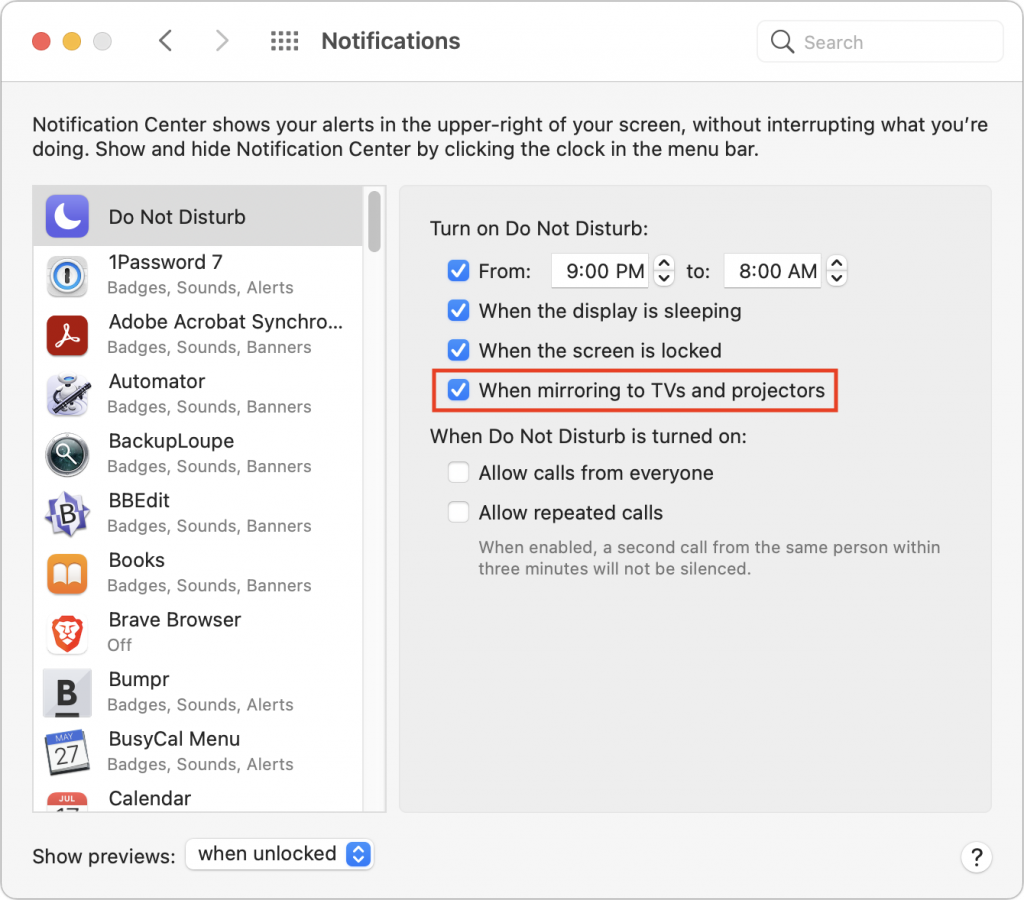
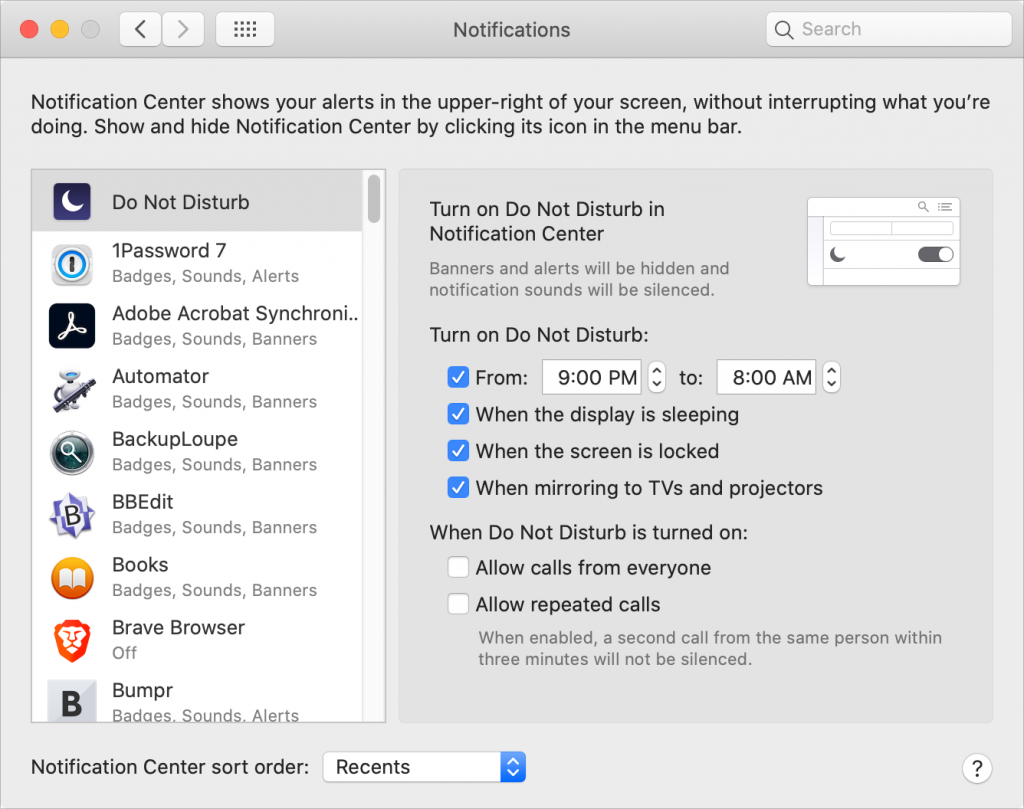
Apple’s Focus feature on the iPhone, iPad, and Mac can silence those interruptions, but Focus is considerably more complex than the straightforward Do Not Disturb feature it replaced in 2021. Misconfiguring Focus such that it activates unexpectedly can cause you to miss important calls, messages, and other notifications.
What Focus Does
Focus lets you create customized notification environments that block unwanted interruptions while allowing important ones through. You can have a Focus for different situations—when you’re at work, eating dinner, at the gym, and more—each with its own rules about when it activates and which people and apps can reach you.
When a Focus is active, it can:
- Silence notifications from selected people and apps
- Allow specific people and apps to break through
- Change your Lock Screen appearance
- Hide certain Home Screen pages
- Automatically reply to messages explaining you’re unavailable
- Filter content in apps like Mail, Calendar, and Messages
- Make a certain profile or tab group active in Safari
Focus can share your settings across all your Apple devices, which saves you from having to configure it on each device but can also create confusing interactions.
The Built-In Focus Modes
Apple provides three essential Focus modes that cover most people’s needs:
- Do Not Disturb: A general-purpose Focus for when you need to ensure your iPhone doesn’t interrupt you. It’s ideal for doctor appointments, workouts, movies, and similar situations. You can schedule it, but it’s often best to activate it manually from Control Center for a specific amount of time or until you leave the current location.
- Sleep: This Focus activates according to the Sleep schedule you set on the iPhone (in either Settings > Focus > Sleep or in the Health app) to minimize nighttime interruptions. It lets you choose a specific Lock Screen, Home Screen, and Apple Watch face to limit distractions at night.
- Driving: Automatically activates when your iPhone connects to a car’s Bluetooth system or detects driving motion. (The Bluetooth connection may be best if you’re frequently a passenger and want to use your iPhone while being driven.) It blocks nearly all notifications to keep your attention on the road and can send custom automatic replies to people who text you.
For further customization, you can create additional Focus modes—Apple suggests modes for Gaming, Mindfulness, Personal, Reading, and Work. For instance, if you take a spin class every Tuesday at noon and yoga on Thursdays at 7 AM, you could create a Focus for Working Out that would automatically activate during those times.
Configuring a Focus
To set up a Focus, go to Settings > Focus on your iPhone or iPad, or System Settings > Focus on your Mac. Select the Focus you want to configure or create a new one, then:
- Choose allowed people: Decide whether to allow or silence notifications from specific people. You can also specify whether phone calls from certain groups (Allowed People, Favorites, Contacts, or Contacts groups) can break through.

- Choose allowed apps: Similarly, allow or silence specific apps. You can also enable Time Sensitive Notifications, which lets urgent alerts (like delivery notifications or security alerts) come through even from disallowed apps.
- Set a schedule: Have the Focus turn on at certain times, locations (on when you arrive, off when you leave), or when using specific apps (but not when apps are in the background). App-based triggers are useful for presentations, live performances, and games. A Smart Activation option on the iPhone can automatically turn on a Focus based on your location, app usage, and time of day.
- Add Focus Filters: Customize how Calendar, Mail, Messages, Safari, and others behave when the Focus is active—for example, showing only certain Safari tab groups and your work email accounts during a Professional Focus.
- Intelligent Breakthrough & Silencing: If you have Apple Intelligence enabled, this option “intelligently” allows priority notifications to interrupt you and silences others. It doesn’t override your explicit settings for allowing or silencing notifications.


The Complexity Problem
While Focus is powerful, its complexity can create unpredictable behavior. Here are common pitfalls to avoid:
- Unexpected activation: With automatic schedules based on time, location, and apps, it’s hard to predict when a Focus might turn on. You may not realize notifications are being silenced until you’ve missed something important. This is especially important if your routine is interrupted. Perhaps you normally work out at noon, but today you are at a professional conference or dealing with a family emergency.
- Cross-device confusion: By default, Focus syncs across all your Apple devices via the Share Across Devices option. Syncing means a Focus activated on your iPhone—such as Sleep—might also silence notifications on your Mac when you’re working late and need to communicate with colleagues. Consider turning off Share Across Devices unless you’re certain you want synchronized behavior.
- Unpredictable AI: Focus includes two features that rely on machine learning—Smart Activation and Intelligent Breakthrough & Silencing—to make contextual decisions about when Focus should activate and which notifications are important enough to bypass it. We recommend against using them because they make an already unpredictable scenario even more unpredictable.
- Silenced notifications indicator: When a Focus is active, people who text you in Messages see that your notifications are silenced. While this can be helpful, it can also confuse others when a Focus activates unexpectedly.
- The forgotten Focus: A Focus that activates automatically when you go to a specific location or open a particular app might remain active longer than you expected. For instance, what if a Focus activates when Mail is your frontmost app, but you have to leave unexpectedly and your Mac doesn’t sleep automatically, so Mail remains the active app over the weekend? That might be particularly confusing when a Focus Filter hides certain accounts or data.

Practical Recommendations
To get the benefits of Focus without the confusion:
- Keep it simple: Start with Do Not Disturb, Sleep, and Driving. These three cover the needs of most people and have the most predictable behavior. If you created Focus modes you’re not using, delete them.
- Be conservative with triggers: If you add schedules or triggers based on location or apps, keep them to a minimum. The more triggers you add, the harder it becomes to predict when a Focus will be active.
- Allow more calls: These days, unexpected calls from people you know well are fairly uncommon, and those that do happen are more likely to be important. So consider allowing calls from family and close friends (perhaps via Favorites or a Contacts group) and enabling Allow Repeated Calls, which lets someone through if they call twice within three minutes.
- Check Focus status when troubleshooting: If you or someone you know is missing notifications, check whether a Focus is unexpectedly active. The easiest place to check is Control Center.
- Review Share Across Devices: If you experience unexpected Focus behavior, turn off Share Across Devices and configure each device’s Focus settings independently.
- Control notifications directly: Rather than rely on Focus, limit notifications to just those that are actually important to you. Many apps are unnecessarily chatty.
Focus is a powerful tool for managing the constant stream of notifications from our devices, but it requires careful configuration. When in doubt, keep it simple: Sleep to protect your sleeping hours, Driving to block distractions in the car, and Do Not Disturb for ad hoc appointments and performances may be all you need.
(Featured image by iStock.com/DragonImages)
Social Media: Apple’s Focus can silence distractions when you need quiet time, but its complexity can cause you to miss important notifications. Learn how to configure it safely—and avoid the pitfalls that lead to missed calls and messages.