
Posts

Not All Your Mac’s USB-C Ports Are the Same

We recently helped a client set up an external boot drive on a Mac mini for testing, but the installation kept failing near the end with vague errors. We tried different cables, swapped drives, and more, to no avail. On a hunch, we moved the SSD to a different USB-C port, and the installation completed on the next attempt. But the port wasn’t bad—it was just the wrong port. Here’s what we mean.

All the USB-C ports on a Mac look identical, but they don’t all behave the same way. On Macs with Apple silicon and Intel-based Macs with the T2 chip, Apple designates one port as the DFU (device firmware update) port. Most of the time, this distinction doesn’t matter—you can plug a device into any port, and it’ll work normally. But for certain tasks, using the wrong port can cause mysterious failures that waste hours of troubleshooting time.

Note that we say “USB-C” here, even though in most cases, these are Thunderbolt ports. However, Thunderbolt uses the USB-C connector, and Apple refers to the ports as USB-C ports, so we’re following Apple’s lead.

When It Matters Which Port You Use

The DFU port exists for one specific purpose: reviving or restoring your Mac’s firmware using another Mac and the Apple Configurator app. This recovery procedure requires connecting a USB-C cable (not a Thunderbolt cable!) to the DFU port. It’s extremely uncommon to need to revive a Mac in this way, but it might be necessary if the Mac starts up to an exclamation point in a circle, starts up to a blank screen, shows the status indicator light pattern for firmware recovery mode, or has problems installing macOS.

For most everyday tasks, the DFU port should work like any other USB-C port. However, Apple has documented one notable exception on Macs with Apple silicon: when installing or updating macOS on an external drive, avoid using the DFU port. If your external drive is connected to it during installation, the process may fail partway through, often without a useful error message and certainly without a clear “Connect your drive to a different port” message. You might see vague notifications like “Some updates could not be installed” or cryptic errors like “com.apple.OSInstallerSetup.error 702.” After installation or updating completes, you can connect your external drive to any port, including the DFU port.

We’ve also heard of situations where seemingly inexplicable problems, such as errors from an Apple SuperDrive attached to a Thunderbolt dock, were resolved by switching to a different port. It wasn’t always clear which port was responsible, but it’s always worth trying a different one if you have trouble.

Finding Your Mac’s DFU Port

How do you figure out which USB-C port is the DFU port? Apple maintains a support document describing the DFU port locations for each Mac model. The location varies by model and, within the same model, sometimes by generation. Apple does not explain why a particular port is designated as the DFU port or provide another way to identify it. All you can do is refer to Apple’s documentation.

Unfortunately, users have found errors on that page in the past, so if you’re experiencing unexplained installation failures or other errors, try a different port even if you believe you’re using the correct one.

DFU Port Takeaways

For everyday use—connecting displays, drives, docks, and other peripherals—you shouldn’t need to think about which port you’re using. The only time you must use the DFU port is when reviving or restoring a very unhappy Mac.

However, if you’re setting up an external boot drive or updating macOS on an external drive, take a moment to identify your Mac’s DFU port and plug your drive into a different one. And if a peripheral, even if it’s connected through a dock, behaves inexplicably, treat the port itself as a variable. Before troubleshooting cables, drives, or software, move the connection to another USB-C port. This simple step can save you from frustrating troubleshooting sessions where everything appears to work but ultimately fails.

(Featured image by iStock.com/Milosz Deptula)


Social Media: Your Mac’s USB-C ports look identical, but one is special—and using it can cause macOS installations or updates on external drives to fail, or trigger other errors with Thunderbolt docks. Learn which USB-C port isn’t like the others.
A Few of Our Favorite Things: Tech Edition

The holiday season is fast approaching, but we’re asked to recommend tech gear year-round. Here are some recommendations if you’re looking for a geeky gift for that special someone or need to supplement your tech toolkit with new or updated equipment. We don’t have personal experience with all these items, and there are undoubtedly many worthy alternatives—next time we chat, let us know about peripherals you’ve particularly liked. Where possible, we provide links to the manufacturer’s product page and to Amazon, where prices are sometimes lower.

External SSD

All Macs now use solid-state storage internally, and the pricing of external solid-state drives now makes them attractive for both additional storage and silent backups. SSDs also provide the ultimate performance for demanding workflows. The Samsung and Crucial SSDs are good general-purpose drives; look at the OWC Envoy Pro FX for high-performance tasks.

External Hard Disk Drive

For extensive backups and massive archives, you need a large external hard drive. They come in sizes up to 20 TB, and you can pay less than $20 per terabyte, although $20–$30 per terabyte is more common. It’s impossible to recommend specific models without knowing how much storage you need, but check out products from these manufacturers. Because hard drive prices fluctuate wildly, visit diskprices.com to identify current deals on new drives.

  • Seagate: Seagate offers a collection of desktop and portable drives under its own name and the LaCie brand. Apart from some of the larger LaCie drives, most are aimed at consumers.
  • Western Digital: Although some suggest that Western Digital drives are less reliable than Seagate’s, many people like the company’s wide variety of external hard drives.
  • OWC: Other World Computing sells desktop and portable drives with an emphasis on RAID storage and professional uses. OWC also offers enclosures into which you can install bare drives purchased elsewhere, which can save money if you want to upgrade the drive over time.

External Displays

You can find a wide array of displays that work with a Mac, with Apple’s Studio Display leading the pack in both features and price. It’s a 5K display that provides unparalleled sharpness at its standard pixel-doubled resolution of 2560×1440. There’s little direct competition—LG offers the main 5K display that’s cheaper. If that still exceeds your budget, check out the 27-inch 4K displays from Alogic and Asus, which connect via USB-C. Dell and BenQ also make high-quality screens that connect using Thunderbolt. Note that these third-party displays don’t include webcams and generally feature subpar speakers compared to the Apple Studio Display, so building a comparable display would require a separate webcam (or an iPhone using Continuity Camera) and speakers.

Laptop Chargers

Although all MacBooks come with a power adapter, you might want additional chargers that stay plugged in wherever you work or take up less space in your laptop bag. Plus, Apple’s chargers, though high quality, are expensive and large. Consider these alternatives, keeping in mind that fast charging requires higher wattages than standard charging (70W for the M3 MacBook Air, 96W for the 14-inch MacBook Pro, and 140W for the 16-inch MacBook Pro). Extra ports are often welcome, and the OneAdaptr chargers work in 200 countries.

USB Hubs

There are lots of reasons to want a USB hub, and your needs will push you toward one product or another. We chose three options: the Anker 555 provides many different types of ports, the Anker 10-port hub provides numerous USB Type-A ports, and the Satechi 4-port hub offers USB-C ports.

Thunderbolt Docks

USB hubs are sufficient for many situations, but for more demanding setups, you’ll want a Thunderbolt dock that enables you to connect multiple external displays, hard drives, and Gigabit Ethernet, all while using high-wattage charging. The Sonnet and CalDigit docks boast the most ports in horizontal and vertical form factors, respectively, and the OWC dock trades some ports for portability.

Non-Apple Pointing Devices

Some people dislike trackpads, and others aren’t fond of Apple’s Magic Mouse. Luckily, there are plenty of alternatives. Although most Bluetooth mice will work with the Mac, additional software may be necessary to control tracking speed, extra buttons, or scroll wheels. Unusual pointing devices like the Kensington trackball and Contour RollerMouse may be appreciated by those suffering from hand or wrist pain from mousing.

Non-Apple Mac Keyboards

All Macs other than the Mac mini come with a keyboard, of course, but if you’re not a fan of the feel and minimal key travel of Apple’s keyboards, you might consider an alternative. You’ll need to decide if you want a full-size keyboard with a numeric keypad or a compact keyboard that takes up less space on your desk—there are also various sizes in between. Also, keyboards use different switches under their keycaps, so it may require experimentation to find what you like best. It’s worth buying a keyboard aimed at the Mac market to ensure it has or can be configured with the correct keys. The recommendations below should get you started; also check out other products from these manufacturers.

iPad Keyboards

Apple makes some of the best keyboards for the iPad, but they don’t work with all older models. The company makes the Magic Keyboard for the M4 iPad Pro models, the Magic Keyboard that works with the iPad Air and earlier iPad Pro models, and the Magic Keyboard Folio for the 10th-generation iPad. If you want to spend less, leave out the trackpad, or have a different case design, look into the alternatives.

Small Device External Batteries

Although Apple continuously works to improve battery life for the iPhone, iPad, Apple Watch, and AirPods, there will always be situations—travel, camping, non-stop use—where an external battery is a lifesaver. That’s especially true for older devices whose batteries don’t last as long as they used to.

MagSafe Chargers for the iPhone

Wired charging will always be faster and more efficient than wireless charging, but the convenience of MagSafe charging for the iPhone is compelling. As a bonus, MagSafe chargers can also power wireless charging cases for the AirPods Pro, and some, like the KUXIU X55, feature a puck for recharging the Apple Watch.

Let us leave you with a final piece of advice. For many of these product categories, you’ll find a dizzying array of alternatives at bargain basement prices from no-name Chinese manufacturers. While it’s impossible to make blanket assertions, we recommend sticking with reputable companies that have been serving Apple users for years. Even if their products are somewhat more expensive, they’re less likely to cut corners on manufacturing quality and safety and more likely to provide support in the event of problems.

(Featured image by iStock.com/Gatot Adriansyah)


Social Media: If you’re looking for a geeky gift for the Apple user on your holiday list or need to bolster your tech toolkit with new or updated gear, read our recommendations for a wide variety of peripherals.

Two Important Tips for External Storage Devices

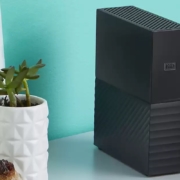
It’s tempting to think that most external storage devices—whether simple hard drives or more complicated network-attached storage (NAS) units—are relatively similar because they all do roughly the same thing. However, a recent problem with older Western Digital My Book Live NAS devices highlighted that there can be large differences. In that case, hackers figured out how to cause a factory reset that wiped the entire drive of all files. (If you have one, note that Western Digital recommends disconnecting it from the Internet immediately.) Two tips: Although no one could have anticipated this particular problem, ask us before buying external storage because we may be able to recommend known good products or warn you away from sketchy manufacturers. Also, if you store unique data on an external drive, you must back up that drive just like your Mac’s internal drive or risk losing everything, like these My Book Live owners did. Backup, backup, backup!

(Featured image by Western Digital)